
In Brief (TL;DR)
Discover how to revolutionize the look of your Android smartphone by customizing the Home screen from scratch with the best launchers and icon packs.
Find out how alternative launchers and icon packs can completely transform your smartphone’s interface, making it unique and tailored to you.
Learn how to choose and match the perfect icon packs to add the finishing touch to your customization.
The devil is in the details. 👇 Keep reading to discover the critical steps and practical tips to avoid mistakes.
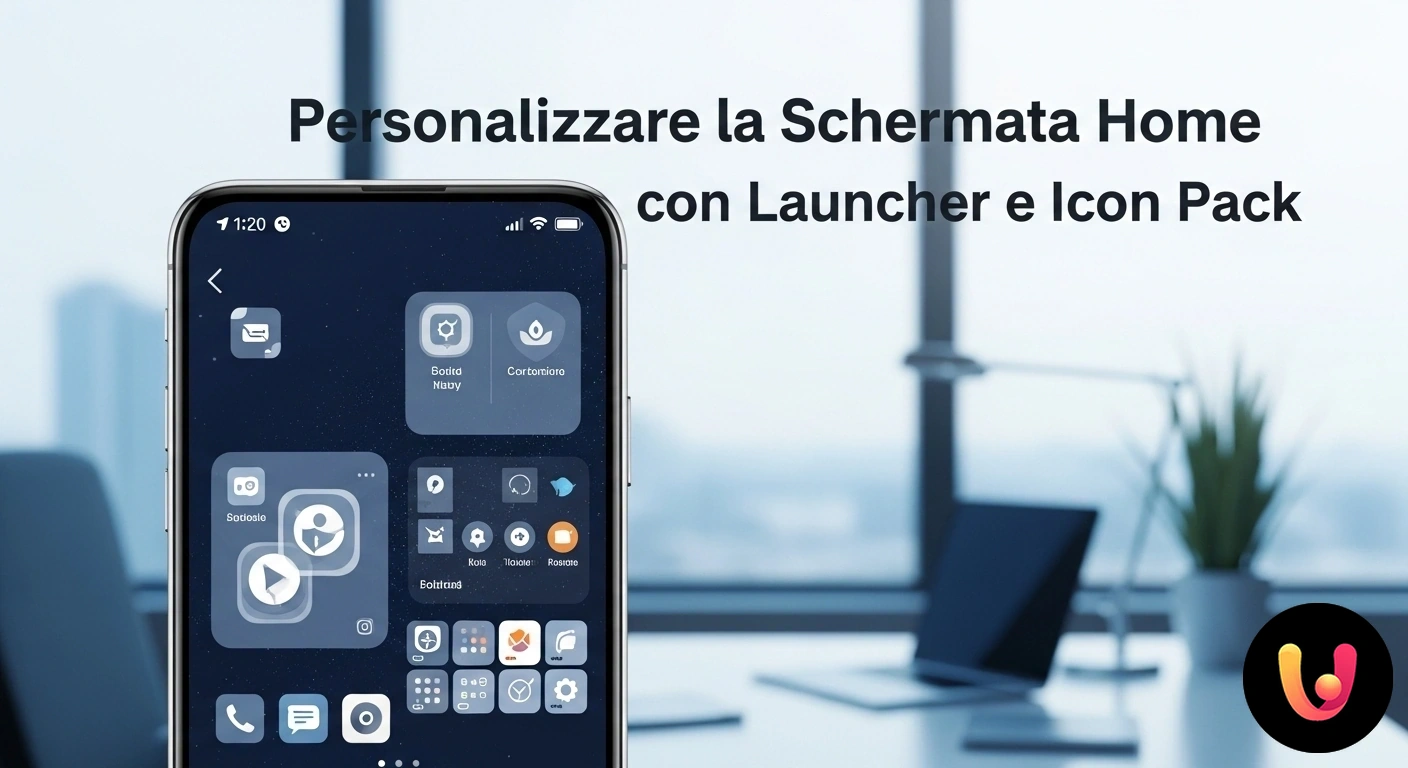
The smartphone is the most personal object we own. We take it everywhere, use it to communicate, work, and entertain ourselves. Yet, often its interface, the so-called “Home screen”, remains standardized, identical to that of millions of other users. Personalizing this digital space means transforming a mass-market device into an object that is truly ours, a reflection of our style and needs. In this regard, the Android operating system offers unparalleled freedom thanks to two fundamental tools: Launchers and Icon Packs. These elements allow you to combine the tradition of personal taste and self-expression with technological innovation, creating a unique user experience that is more efficient and enjoyable.
Using an alternative launcher and an icon package is not just an aesthetic matter. It is about optimizing how we interact with our phone every day. A well-organized interface can improve productivity, reduce distractions, and make accessing applications faster and more intuitive. In a market increasingly attentive to design and functionality, and in a culture that values beauty and individuality, personalization becomes a way to affirm one’s digital identity. This guide will explore how, through a few simple steps, it is possible to revolutionize the look and functionality of your Android device.
Why customize your smartphone?
Customizing a smartphone interface goes beyond simply changing the wallpaper. It is a process that allows you to adapt the device to your workflow and aesthetic taste. The main advantages lie in efficiency and personal expression. A well-configured launcher, for example, can organize apps more logically than the default one, putting the tools we use most often right at our fingertips. This reduces time wasted searching through dozens of icons. Statistics show a growing desire among users to make their digital spaces unique, with a constantly growing market for personalization apps. This reflects the need to transform a mass-produced product into a tailored personal assistant.
Furthermore, the visual aspect plays a crucial role. A consistent theme, with icons and colors that reflect our style, makes using the phone a more pleasant experience. For many, the smartphone is an extension of their personality. Just as we carefully choose the clothes we wear or our home decor, we can shape the interface of our device. This balance between innovative functionality and aesthetic tradition allows for the creation of a digital environment that is not only more practical but also visually satisfying, combining the useful with the beautiful in perfect style.
What are Android Launchers?
A launcher is an application that constitutes the main user interface of the Android operating system. Imagine it as the “desktop” of your computer or the dashboard of your car: it is the screen you see when you unlock your phone, from which you launch apps and manage widgets. Every smartphone manufacturer (such as Samsung, Xiaomi, or Google) pre-installs its own launcher, but the strength of Android lies in the ability to replace it. Installing an alternative launcher means radically changing the look and behavior of the Home screen, the app drawer (the list of all applications), and interactions, such as gestures. This operation does not require advanced technical skills and is completely reversible.
Third-party launchers offer a level of customization far superior to the standard one. They allow you to modify the icon grid, change transition animations, apply icon packages (Icon Packs), and much more. Some focus on productivity, others on minimalism, and others still on maximum flexibility. Choosing the right launcher is the first and most important step to creating a truly tailored Android experience, a bridge between the device’s powerful capabilities and the user’s unique preferences.
The Best Launchers of 2025: A Balance Between Tradition and Innovation
The launcher market offers solutions for every need, balancing established features with innovative approaches. Here is a selection of the best for 2025:
- Nova Launcher: Considered a timeless classic, Nova Launcher has been a benchmark for customization for years. Its strength lies in an incredible depth of options that allow you to modify every single aspect of the Home screen. It represents the tradition of Android customization but remains innovative thanks to continuous updates that ensure fluidity and compatibility. It is the ideal choice for those who want total control.
- Microsoft Launcher: Designed for productivity, this launcher integrates perfectly with the Microsoft ecosystem, synchronizing notes, calendar, and tasks with your Windows PC. It offers a personalized feed with news and useful widgets. Its innovation lies in transforming the phone into a true extension of the work environment, without sacrificing good aesthetic customization options.
- Niagara Launcher: This launcher adopts a minimalist and innovative approach, designed for one-handed use. Apps are presented in a vertical list, favoring quick access and reducing distractions. It is perfect for those looking for efficiency and a clean design. Its philosophy pairs well with accessibility features, such as one-handed mode, making the user experience more ergonomic.
- Smart Launcher: With proud Italian roots, Smart Launcher is famous for its ability to automatically organize apps into categories. Its most recent version combines modern design with smart features, such as integrated search and a dedicated widget page. It represents an excellent example of how software innovation can simplify daily life while maintaining an elegant and tidy interface.
What are Icon Packs?

Icon Packs are sets of custom icons, created by designers and developers, that can be applied via a compatible launcher to replace the default application icons. They work like a “suit” for your apps: while maintaining the same functionality, they change the appearance to create a consistent and homogeneous visual style on the Home screen and in the drawer. There are thousands of icon packages on the Google Play Store, with styles ranging from minimalist to photorealistic, from colorful to monochromatic. Using an Icon Pack is one of the most effective and immediate ways to transform your device’s visual identity.
The true value of an Icon Pack lies in its ability to bring visual harmony. Often, original app icons have vastly different styles, shapes, and colors, creating a cluttered effect. A good icon package unifies the design, for example by making all icons round, square, or following a specific color palette. This not only improves aesthetics but can also help reduce “visual noise,” making it easier and faster to locate the desired app. They are the finishing touch that completes the customization started with the launcher.
Icon Packs for Every Style: From Minimalism to Artistic Design
The choice of an Icon Pack is purely subjective and depends on the theme you want to give your smartphone. Trends in 2025 show a preference for clean styles but also for bold and creative designs. Here are some popular categories and examples:
- Minimalist and Monochromatic Style: Perfect for those who love order and visual cleanliness. These packages often use a single color and simple shapes. Whicons (white icons) and its twin Zwart (black icons) are extremely popular because they adapt beautifully to dark (AMOLED) or light backgrounds, creating strong contrast. They are the ideal choice for a modern, no-frills look.
- Material You Style: Inspired by Google’s design language, packages like Pix Material You Icons dynamically adapt their color based on the device’s wallpaper. They offer an integrated and consistent experience with the latest Android aesthetics, representing a perfect balance between Google’s design tradition and the innovation of dynamic customization.
- Linear and Outline Style: Characterized by icons defined only by outlines, such as Lines Icon Pack or Vera Outline, these packages give an elegant and light appearance. They are very versatile and work well with both simple and complex backgrounds without cluttering the screen.
- Creative and Unique Style: For those who want their phone to truly stand out, there are packages with an artistic touch. Crayon Icon Pack, for example, transforms icons into pastel drawings, giving a playful and informal look. These packages are the ultimate expression of personalization as an art form.
Practical Guide: How to Install Launchers and Icon Packs
Changing the look of your Android smartphone is a simple operation accessible to everyone. No special permissions or complex procedures are needed. Customization takes place in two main phases: first, you install the launcher, which acts as a “base”, and then you apply the icon pack to define the style. This procedure is standard for most devices and apps available on the Google Play Store. By following these steps, you can give your phone a new face in just a few minutes, a fundamental step for anyone wanting to delve deeper into Android configuration.
Installing a New Launcher
The first step is to choose and install an alternative launcher. The procedure is identical to that for any other application:
- Open the Google Play Store on your smartphone.
- Use the search bar to find the launcher you prefer (e.g., “Nova Launcher” or “Niagara Launcher”).
- Tap “Install” and wait for the download and installation to complete.
- Once installed, press your phone’s “Home” button (the physical or virtual button that takes you back to the main screen). At this point, the system will ask you which app you want to use for this action.
- Select the newly installed launcher and choose the “Always” (or “Set as default”) option to make it your default launcher. From now on, this will be your new Home screen.
Applying an Icon Pack
After setting up the new launcher, it’s time to change the icons. Again, the process is very intuitive:
- Go back to the Google Play Store and search for the icon pack you want (e.g., “Whicons” or “Lines Icon Pack”).
- Install the icon package as you would a normal app.
- Unlike a standard app, the icon pack does not “open” directly. To activate it, you must access your launcher’s settings. Usually, you just need to long-press on an empty spot on the Home screen and select “Settings”.
- Look for a section called “Appearance”, “Theme”, “Icons”, or “Icon Style” (the name varies slightly between different launchers).
- Inside this section, you will find an option to select the icon package. Tap it and choose the icon pack you just installed from the list. The changes will be applied immediately.
Advanced Customization: Widgets and Other Tweaks
Once you’ve mastered launchers and icon packs, a world of possibilities opens up for even deeper customization. Widgets are one of the most powerful tools available. They are not simple shortcuts, but small interactive windows of an app that live directly on the Home screen, providing real-time information or quick access to certain functions. A weather widget, a calendar with upcoming appointments, or a music control can transform the Home screen into a true personalized command center. Many modern launchers offer flexible grids to position and resize widgets with precision, integrating them perfectly with the style of the icons and wallpaper.
In addition to widgets, advanced launchers like Nova allow you to modify almost every detail: the size and font of labels under icons, folder colors, notification badges, and even gestures. For example, you can set an upward swipe on an icon to open a second app or a folder. The combination of a powerful launcher, an aesthetically curated icon pack, and a smart selection of widgets allows you to create a user experience that is not only beautiful to look at but also incredibly efficient. It is the next level of customization, where every element is in its place for a reason, making the phone faster to use and freeing up mental space. For those who love to optimize, discovering the Android tricks hidden in launchers can be a real revelation.
Conclusions

Customizing the Home screen of your Android smartphone with launchers and icon packs is much more than a simple exercise in style. It is an opportunity to transform a standardized device into a truly personal tool, modeled on our habits, needs, and aesthetic taste. In a cultural context where attention to design, individuality, and efficiency is increasingly marked, this practice takes on particular value. It allows finding a unique balance between the tradition of self-expression and the technological innovation offered by the Android system.
Choosing the right launcher can improve productivity, while a well-matched icon pack provides visual consistency and ease of use. As we have seen, the process is simple, accessible to everyone, and completely reversible. Whether you are looking for a minimalist interface to reduce distractions or granular control over every single detail, there is a combination of tools suitable for you. Taking the time to curate your digital environment means making technology not only more functional but also more human and closer to who we are.
Frequently Asked Questions
A well-optimized launcher, such as Nova Launcher or Smart Launcher, generally does not slow down the phone nor cause abnormal battery consumption. Their impact on resources is minimal. However, the excessive use of complex widgets, elaborate animations, or live wallpapers can lead to higher energy expenditure and a slight drop in performance, regardless of the launcher used. It is how you customize the home screen, more than the launcher itself, that makes the difference.
The launcher is the application that manages the home screen and the app menu (app drawer) of your phone. Changing it allows you to modify the appearance and features of your interface. Icon packs, on the other hand, are sets of custom icons that are applied via a launcher to replace the default ones of your apps, ensuring a consistent and unique graphic style. They work like specific «themes» for icons.
Returning to the default launcher is a simple and reversible operation. You need to go into your phone’s «Settings», search for the «App» or «Applications» section, and then find an option like «Default apps» or «Home app». From there, you can select the manufacturer’s original launcher (e.g., One UI Home for Samsung, Pixel Launcher for Google, etc.) and set it as default again.
There are many launchers and icon packs available, both free and paid. Often, free versions already offer a wide range of customizations. Paid versions, usually at a low cost, unlock advanced features, deeper customization options, or a larger number of supported icons and more frequent updates. Many developers offer a basic free version to try out the main features before a potential purchase.
No, it is absolutely not necessary to have root permissions. Launchers and icon packs are normal applications that you download and install directly from the Google Play Store. Installation is as simple as that of any other app and does not void the device warranty. Android is designed to allow this level of customization natively and securely for all users.



Did you find this article helpful? Is there another topic you'd like to see me cover?
Write it in the comments below! I take inspiration directly from your suggestions.